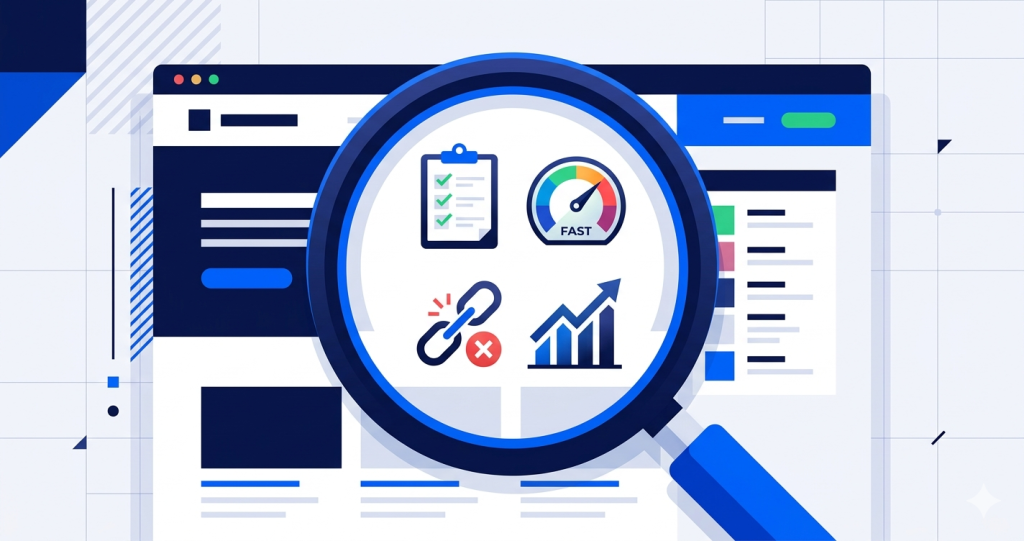
Knowing you need an SEO audit is one thing. Actually running one — in the right order, without missing anything important — is another.
This guide shows you exactly how to do an SEO audit from start to finish. It follows a clear 7-step process that works for any website: a blog, a small business site, a portfolio, or an e-commerce store.
You do not need to be a developer. You just need to know where to look and what to look for.
If you want to understand what an SEO audit is before you start, read What Is an SEO Audit? A Complete Guide first. If you already know and want a reference list alongside this guide, keep the SEO Audit Checklist: 25 Checks to Run Today open in another tab.
In this guide:
- Before you start: what you need
- Step 1: Set a clear audit goal
- Step 2: Crawl your site
- Step 3: Check what Google can index
- Step 4: Review on-page SEO factors
- Step 5: Check page speed and Core Web Vitals
- Step 6: Review internal and external links
- Step 7: Document your findings
- What comes next after your audit
- FAQ
Before You Start: What You Need
You do not need a large tool stack to perform an SEO audit. At a minimum, have these ready before you begin:
- Access to Google Search Console — If your site is not connected yet, set it up at search.google.com/search-console and verify ownership. It is free and gives you direct data from Google about how your site is performing.
- A crawl tool — This scans your entire site the way a search engine would and flags technical problems. Site Audit Pro runs the crawl and produces a structured report automatically. Screaming Frog is a popular desktop alternative for those who prefer manual control.
- A spreadsheet or note document — You will use this to log what you find. A simple Google Sheet works well.
- Access to your CMS or website backend — You will need to check and edit page titles, meta descriptions, and other on-page elements directly.
Once you have these ready, you are set to start.
Step 1: Set a Clear Audit Goal
Before you crawl a single page, decide what you are trying to achieve. An unfocused audit produces a long list of issues with no clear priority. A focused one tells you exactly what to fix and why.
Ask yourself one of these questions before you start:
- Has my organic traffic dropped recently, and I want to find out why?
- Am I launching a new site or just finished a redesign?
- I have never audited this site before and want a full health check.
- I want to improve rankings for specific pages or keywords.
Your goal shapes how you interpret the results. A site that just went through a migration needs a different focus than one that has been live for two years and is slowly losing traffic.
Write your goal down. One sentence is enough. You will refer back to it when you are deciding which issues to fix first.
Step 2: Crawl Your Site
A crawl is the foundation of any SEO audit. It maps your entire site — every page, every link, every status code — and shows you problems that are invisible to the naked eye.
What to do
Run a full crawl of your domain. The crawler will follow every internal link it finds and check each URL for issues including broken pages, redirect chains, missing meta tags, duplicate titles, slow load times, and more.
What to look for
- 4xx errors — pages returning a “not found” status. These are broken pages.
- 3xx redirects — check for chains (A → B → C) and loops (A → B → A).
- 5xx server errors — the server failed to load the page. These are critical.
- Pages with missing or duplicate title tags and meta descriptions.
- Pages blocked by robots.txt or noindex tags that should be visible to Google.
What a bad result means
A large number of 4xx errors means users and crawlers are hitting dead ends. Redirect chains dilute link equity and slow down crawling. Duplicate title tags mean Google has to guess which page to rank for a given query.
Skip the manual setup.
Site Audit Pro runs this crawl for you automatically — no configuration needed.
Step 3: Check What Google Can Index
Crawling tells you what your site contains. This step tells you what Google is actually allowed to see — and whether it matches what you want.
What to do
Open Google Search Console and go to the Pages report (previously called Coverage). This shows you which of your pages are indexed, which are excluded, and why.
What to look for
- Pages excluded by noindex — check that none of these are pages you actually want Google to rank.
- Pages excluded by robots.txt — same check. Confirm these are intentionally blocked.
- “Duplicate without user-selected canonical” — Google has found duplicate versions of a page and is choosing which one to index itself. That is a signal you need to add canonical tags.
- “Crawled but not indexed” — Google visited the page but chose not to index it. This often points to thin content or quality issues.
- Important pages missing from the index entirely — use the URL inspection tool to check individual pages.
What a bad result means
If key pages are excluded or not indexed, they will not appear in Google search results — regardless of how good the content is. Indexability problems must be fixed before anything else will have an impact.
Reference: Google’s Page Indexing report documentation
Step 4: Review On-Page SEO Factors
Once you know your site can be crawled and indexed, review the quality of what is actually on each page. This is the content layer of your audit.
What to do
Work through your most important pages — start with the homepage, your main service or product pages, and your highest-traffic content. For each one, check the following:
Title tags
Every page needs a unique title tag that clearly describes the page topic. Keep it under 60 characters. If two pages have the same title, Google has to decide which one to rank — and it may rank neither.
Meta descriptions
Not a direct ranking factor, but it affects how many people click your result. Each page should have a unique description between 120 and 155 characters that gives the reader a reason to click.
Heading structure
Each page should have one H1 heading that matches the main topic. Subheadings (H2, H3) should follow a logical order. A page that jumps from H1 to H4 is poorly structured for both readers and crawlers.
Content quality
Check whether each important page actually answers the question it is targeting. Pages with very thin content — a few sentences with no real substance — are often ignored or demoted by Google.
Keyword placement
The main keyword for each page should appear naturally in the title tag, H1, and first paragraph. Do not force it. If the sentence sounds unnatural with the keyword in it, rewrite the sentence.
Image alt text
Check that meaningful images have short, accurate alt text. Missing alt text loses a small ranking signal and harms accessibility.
For a deeper breakdown of technical on-page factors, see the Technical SEO Audit: What to Check and Why.
Step 5: Check Page Speed and Core Web Vitals
Page speed is a confirmed Google ranking factor. Core Web Vitals are the specific metrics Google uses to measure the experience of loading and using your pages.
What to do
Run your most important pages through Google PageSpeed Insights. Test on mobile first — Google uses mobile-first indexing, which means it evaluates the mobile version of your site when deciding rankings.
What to look for
- Largest Contentful Paint (LCP) — how long it takes for the main content to appear. Target: under 2.5 seconds.
- Cumulative Layout Shift (CLS) — how much the page layout moves unexpectedly during load. Target: under 0.1.
- Interaction to Next Paint (INP) — how quickly the page responds to user actions like clicks and taps. Target: under 200 milliseconds.
PageSpeed Insights will also flag specific issues — unoptimised images, render-blocking scripts, missing browser caching — so you know exactly what to address.
What a bad result means
A page with poor Core Web Vitals may rank lower than a competitor with similar content but a faster, more stable experience. Speed problems also increase bounce rates — users leave before the page finishes loading.
You can also check your site-wide Core Web Vitals data in Google Search Console → Experience → Core Web Vitals. This shows real-world data from actual visitors, which is more reliable than lab test scores.
Step 6: Review Internal and External Links
Links are how Google moves through your site and measures trust. This step checks both the links between your own pages (internal links) and the links pointing to your site from other websites (backlinks).
Internal links
Check that your most important pages are being linked to from other relevant pages on your site. A key page that no other page links to is much harder for Google to discover and rank.
Also check your anchor text — the clickable words used in links. “Click here” tells Google nothing. “SEO audit process” tells Google exactly what the destination page is about. Replace generic anchor text with descriptive phrases wherever you find them.
Finally, check for orphan pages — pages that exist on your site but are not linked to from anywhere. These are easy for Google to miss. Your crawl tool from Step 2 should have flagged these.
Backlinks
Use Google Search Console’s Links report to see which external sites are linking to yours and which of your pages receive the most backlinks. You do not need a large number of backlinks to rank well — but the ones you have should come from relevant, trustworthy sources.
If you want to go deeper on backlink quality and identify any toxic links, tools like Ahrefs or Semrush have dedicated backlink audit features. For most beginners, the Search Console Links report is a good enough starting point.
Step 7: Document Your Findings
A completed audit is only useful if you record what you found. Without documentation, it is easy to forget what you checked, lose track of issues, and have no baseline to compare against next time.
What to do
Open your spreadsheet and create a simple log with these columns:
- Issue — a short description of the problem (e.g., “Missing title tag on /about page”)
- Category — technical, on-page, speed, links
- Severity — critical, warning, or notice
- Page or URL affected
- Action needed — what fix is required
- Status — not started, in progress, fixed
Sort the list by severity. Fix critical issues first. Work through warnings second. Notices can wait.
Why this matters
Documentation turns a one-time audit into an ongoing process. When you run your next audit in three months, you will have a record of what you fixed — and you will be able to measure whether those fixes had an impact.
Tip: If you use Site Audit Pro, the report already organises findings by severity and category. You can use it directly as your audit log — no extra spreadsheet needed for the technical checks.
What Comes Next After Your Audit
Completing the audit is the beginning, not the end. The value is in what you do with the results.
Work through your issue log in priority order. Start with anything that blocks crawling or indexing — these have the biggest impact on the most pages. Then move to page speed, on-page factors, and links.
Give fixes time to take effect. Most SEO changes take four to eight weeks to show a visible difference in rankings or traffic. After that window, run the audit again and compare the results.
For a full breakdown of how to work through your findings and decide what to fix first, read SEO Audit Fixes: How to Prioritise What You Find.
If you want a quick reference to run alongside your next audit, bookmark the SEO Audit Checklist: 25 Checks to Run Today.
Follow this process in minutes.
Site Audit Pro does the hard work. Enter your URL and get a full report — free, no account needed.
Frequently Asked Questions
How long does it take to do an SEO audit?
For a small site (under 50 pages), plan for two to four hours including documentation. Larger sites take longer — a 500-page site could take a full day or more if done manually. Using an automated tool like Site Audit Pro handles the technical crawl in minutes, so your time goes toward reviewing and acting on results rather than collecting data.
Do I need to audit every page on my site?
Not in equal depth. Start with your most important pages — the ones you most want to rank. Use a crawl tool to flag issues across all pages, then investigate the flagged ones. You do not need to manually review every page individually.
What is the difference between a crawl and an audit?
A crawl is one step inside an audit. Crawling means scanning your pages to collect data. An audit is the full process of reviewing that data — along with indexability, on-page factors, speed, and links — and drawing conclusions from it.
Can I do an SEO audit without Google Search Console?
You can do a partial audit without it, but you will miss important data. Search Console is the only source of direct information from Google about your site’s indexing status and performance. Setting it up before you audit is strongly recommended — and it is free.
How often should I run an SEO audit?
Once a quarter is a good baseline. Run one immediately after any major site change — a redesign, a migration, adding a large amount of new content. If traffic drops unexpectedly, run one straight away rather than waiting for the next scheduled audit.
What should I do if I find a lot of issues?
Do not try to fix everything at once. Sort issues by severity — critical first, then warnings, then notices. Fix the ones that affect the most pages or block Google from indexing your content. Document everything and track your progress. A follow-up audit in four to eight weeks will show what improved.