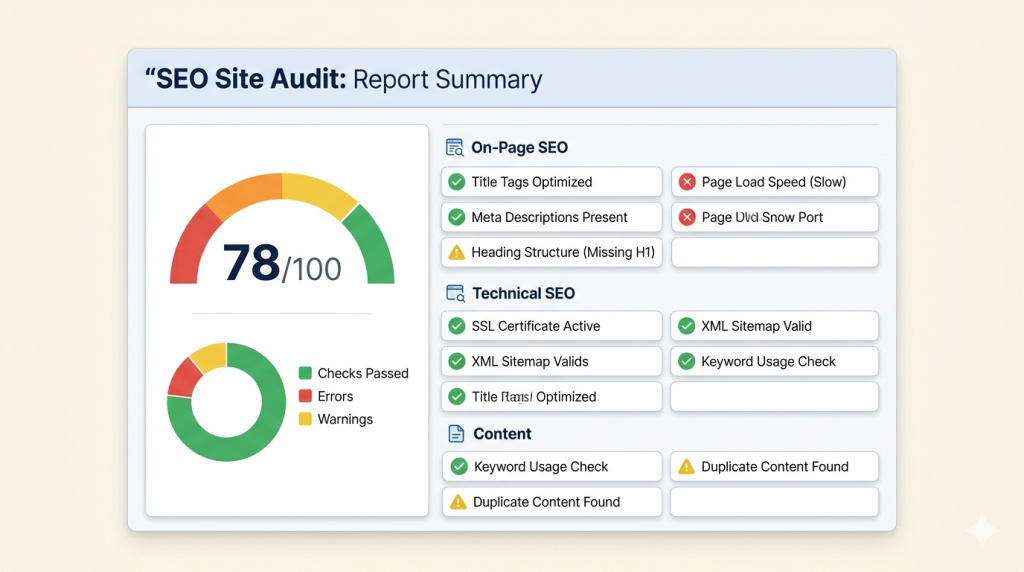
This SEO audit checklist covers the 25 most important checks you should run on any website. It is grouped by category so you can work through it section by section, or jump straight to the area you need.
Each item is one clear check. No long explanations. No theory. Just what to look for and why it matters.
If you are new to SEO audits and want to understand the full picture first, read What Is an SEO Audit? A Complete Guide before you start.
Rather skip the manual work?
Run all 25 checks automatically with Site Audit Pro.
Jump to a section:
How to Use This Checklist
Work through each section in order, or go directly to the category where you suspect problems. Use a tool like Site Audit Pro to run the technical checks automatically — it covers the majority of items on this list in one scan. For on-page and content checks, review your pages manually or spot-check with Google Search Console.
Mark each item as you go. When you find an issue, note it and move on. Fix everything at the end, not mid-audit.
Need a full walkthrough instead of a checklist? See the How to Do an SEO Audit Step by Step guide.
1. Crawlability Checks
These checks confirm that search engine crawlers can reach and move through your site without problems. If a crawler cannot access your pages, nothing else matters.
☐ Check 1: Your robots.txt file is not blocking important pages
Open yourdomain.com/robots.txt and look for any Disallow rules that might block your key pages or entire sections. A misconfigured robots.txt is one of the most common causes of indexing failures — and one of the easiest to miss.
Tool: Google Search Console → Settings → robots.txt Inspector
☐ Check 2: Your sitemap exists and is submitted to Google
Confirm you have an XML sitemap at yourdomain.com/sitemap.xml and that it is submitted in Google Search Console. Your sitemap helps Google discover all your pages, especially newer ones.
Tool: Google Search Console → Sitemaps
☐ Check 3: You have no broken internal links (404 errors)
Crawl your site and check for any internal links that lead to pages returning a 404 error. Every broken link wastes crawl budget and creates a bad experience for visitors.
Tool: Site Audit Pro, Screaming Frog, or Ahrefs Broken Link Checker
☐ Check 4: Redirect chains are not longer than one hop
A redirect chain is when page A redirects to page B, which redirects to page C. Chains slow down crawling and dilute link equity. Every redirect should go directly to its final destination in one step.
Tip: Check for chains during your crawl and update any outdated URLs that point to redirected pages.
☐ Check 5: Your site is accessible over HTTPS with no mixed-content errors
Check that your site loads on HTTPS and that no page is loading resources (images, scripts, stylesheets) over plain HTTP. Mixed content warnings can trigger browser security alerts and affect rankings.
Tool: Why No Padlock or Site Audit Pro
2. Indexability Checks
These checks confirm that the right pages are visible in Google’s index — and the wrong ones are not.
☐ Check 6: No important pages have a noindex tag
Search for any page using a <meta name="robots" content="noindex"> tag that should actually be indexed. This tag is often added during development and accidentally left in place after launch.
Tool: Site Audit Pro or Search Console → Pages → “Excluded by noindex tag”
☐ Check 7: You have no duplicate URLs for the same content
Check whether the same page is accessible on multiple URLs — for example, with and without trailing slashes, or with both www and non-www versions. Duplicate URLs split ranking signals between versions and confuse Google.
Fix: Canonicalise your preferred version and set up 301 redirects for the rest.
☐ Check 8: Every page has a canonical tag pointing to the correct URL
A canonical tag tells Google which version of a page is the “main” one. Check that every page has a canonical, that it is self-referencing where appropriate, and that no page has a canonical pointing to a noindexed URL.
☐ Check 9: Your most important pages are actually indexed
Use the Google search operator site:yourdomain.com or Google Search Console to confirm your key pages appear in the index. A page that is not indexed does not rank — period.
Tool: Google Search Console → Pages → “Indexed”
3. Page Speed Checks
Page speed is a confirmed Google ranking factor. These four checks cover the most common speed problems.
☐ Check 10: Your pages load in under 3 seconds on mobile
Run your key pages through a speed test and check mobile load time. Most users are on mobile, and Google uses mobile-first indexing — so mobile speed matters more than desktop.
Tool: Google PageSpeed Insights
☐ Check 11: Your images are compressed and in a modern format
Unoptimised images are the single most common cause of slow pages. Check that your images are sized correctly for how they are displayed, compressed, and served in a modern format like WebP where possible.
Tool: PageSpeed Insights will flag oversized images automatically.
☐ Check 12: You are using browser caching and a CDN
Check that your server sends proper cache headers so repeat visitors load your pages faster. If your site serves users in multiple countries, a CDN (Content Delivery Network) reduces load times by serving files from servers closer to the user.
Tool: GTmetrix shows cache headers and CDN status in its report.
☐ Check 13: CSS and JavaScript files are minified
Minification removes unnecessary characters from your code files without changing how they work. It reduces file size and speeds up page load. Most modern CMS platforms and page builders handle this automatically — check that it is switched on.
WordPress users: Plugins like Autoptimize or WP Rocket handle this.
4. On-Page SEO Checks
These checks cover the content and structure of each individual page. This is the part of SEO you control most directly.
For a deeper breakdown of on-page and technical factors together, see the Technical SEO Audit guide.
☐ Check 14: Every page has a unique, descriptive title tag
Check that every page has a title tag, that no two pages share the same title, and that each title clearly describes what the page is about. Keep titles under 60 characters so they display in full on Google results pages.
☐ Check 15: Every page has a unique meta description
A meta description does not directly affect rankings, but it influences click-through rate — the percentage of people who see your result and click it. Check that each page has a unique, readable meta description between 120 and 155 characters.
☐ Check 16: Each page uses one H1 heading only
Every page should have exactly one H1 heading. It should clearly describe the main topic of the page. Multiple H1s on the same page confuse search engines about what the page is about.
☐ Check 17: Heading structure is logical (H1 → H2 → H3)
Check that your headings follow a clear hierarchy. Do not skip from H1 directly to H4. A logical structure helps Google understand the organisation of your content and improves accessibility for screen readers.
☐ Check 18: Images have descriptive alt text
Alt text describes an image to search engines and to users who cannot see it. Check that every meaningful image on your site has a short, accurate alt text. Decorative images should have empty alt text (alt="").
☐ Check 19: Your primary keyword appears naturally in the title, H1, and first paragraph
Check that the main keyword for each page appears in the title tag, H1 heading, and within the first 100 words of the content. Do not force it — if it reads unnaturally, rewrite the sentence.
5. Link Checks
Links — both internal and external — affect how search engines understand and rank your site.
☐ Check 20: Your most important pages receive internal links from other pages
Check that your key pages (homepage, service pages, main blog posts) are being linked to from other relevant pages on your site. A page with no internal links pointing to it is harder for Google to discover and rank.
☐ Check 21: Internal link anchor text is descriptive, not generic
Check the anchor text used in your internal links. “Click here” or “read more” tells Google nothing. Descriptive anchor text like “SEO audit checklist” or “how to speed up your site” gives context about the destination page.
☐ Check 22: You have no orphan pages
An orphan page is a page with no internal links pointing to it. Run a crawl of your site and compare the results against your sitemap. Any page in the sitemap but not reached during the crawl is likely an orphan.
Tool: Site Audit Pro flags orphan pages automatically.
☐ Check 23: Your backlink profile has no toxic or spammy links
Check your inbound backlinks for links from low-quality, spammy, or irrelevant sites. A small number of toxic links is normal and usually harmless, but a large volume of them can trigger a manual penalty from Google.
Tool: Ahrefs or Semrush → Backlink Audit
6. Core Web Vitals
Core Web Vitals are Google’s official page experience metrics. They measure how fast and stable your pages feel to real users — and they are a confirmed ranking signal.
☐ Check 24: Your Largest Contentful Paint (LCP) is under 2.5 seconds
LCP measures how long it takes for the main visible content (usually the hero image or main heading) to load. A score above 2.5 seconds is considered “needs improvement” by Google. Check your LCP for both mobile and desktop.
Tool: Google PageSpeed Insights or Search Console → Core Web Vitals report
☐ Check 25: Your Cumulative Layout Shift (CLS) score is under 0.1
CLS measures how much the page layout shifts unexpectedly while loading — for example, a button jumping when an ad loads above it. A CLS above 0.1 is a poor score. Common causes include images with no defined dimensions and late-loading embeds.
Tool: PageSpeed Insights will identify which elements are causing layout shift.
Note on Core Web Vitals: Google also measures Interaction to Next Paint (INP), which replaced First Input Delay in 2024. INP measures how quickly your page responds to user interactions. A score under 200ms is considered good. Check it in PageSpeed Insights alongside LCP and CLS.
What to Do After You Finish the Checklist
Once you have worked through all 25 items, you will have a list of issues. Here is how to handle them:
- Sort by severity. Critical issues first — anything blocking crawling or indexing. Then page speed. Then on-page and links.
- Group similar fixes. All title tag fixes together, all image compression together. Batching saves time.
- Fix and document. Note what you changed and when. You will need this when you run the next audit to see what improved.
- Run the audit again in 4–8 weeks. Fixes take time to reflect in rankings. A follow-up audit confirms your changes are working.
For a full breakdown of how to handle what you find, read SEO Audit Fixes: How to Prioritise What You Find.
If you want to go deeper on the process behind each of these checks, the How to Do an SEO Audit Step by Step guide walks you through it in detail.
Save time. Skip the manual work.
Let Site Audit Pro run these 25 checks for you in under two minutes. Free — no account needed.
Frequently Asked Questions
How long does it take to go through this SEO audit checklist?
Manually, expect 2–4 hours for a small site. If you use an automated tool like Site Audit Pro, the technical checks take a few minutes. The on-page and content items still require a manual review of your key pages.
Do I need to check every page on my site?
Not always. Start with your most important pages — homepage, service pages, top-traffic blog posts. Once those are clean, work through the rest. For large sites, use a crawl tool to identify issues across all pages at once.
What is the most important item on this website SEO checklist?
Crawlability and indexability issues cause the most damage because they can make entire pages invisible to Google. Always check those first. If Google cannot find your pages, nothing else on this list matters.
Can I use this as a technical SEO checklist too?
Yes — the crawlability, indexability, page speed, and Core Web Vitals sections are all technical SEO checks. The on-page and link sections complete the picture. Together they form a full-site audit, not just a technical one.
How often should I go through this checklist?
Once per quarter for most sites. Always run it after a redesign, a platform migration, or any major content update. If your rankings drop unexpectedly, run it immediately.
<!– ═══ INTERNAL LINKING SUMMARY (remove before publishing) ═══════ Links used in this article: [1] /seo-audit-guide → What Is an SEO Audit? A Complete Guide (P0) [2] /how-to-do-seo-audit → How to Do an SEO Audit Step by Step (S2) [3] /technical-seo-audit → Technical SEO Audit (S3) [4] /seo-audit-fixes → SEO Audit Fixes (S6) CTA links: Both CTAs → https://getseo.tools/tools/seo-audit Outbound links used: – https://search.google.com/search-console – https://pagespeed.web.dev/ – https://gtmetrix.com/ – https://ahrefs.com/broken-link-checker – https://ahrefs.com/ – https://www.semrush.com/ – https://www.whynopadlock.com/ – https://wordpress.org/plugins/autoptimize/ All outbound links use target=”_blank” rel=”noopener” ═══════════════════════════════════════════════════════════════ –>