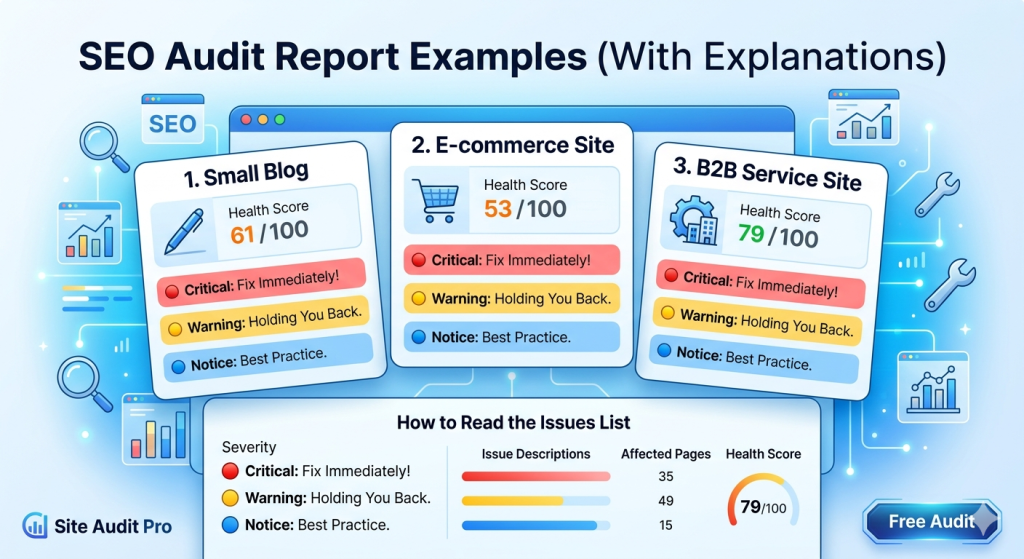
If you have never run an SEO audit before, it can be hard to know what to expect. What does the report look like? What do the numbers mean? How do you know what to fix first?
This page shows you three realistic SEO audit report examples — a small blog, an e-commerce site, and a B2B service site. Each one is a sample report created for illustration purposes. The data is fictional but based on the kinds of issues real sites face.
By the end of this page, you will know exactly what an SEO audit report looks like, how to read it, and what to do with the results.
If you are not yet sure what an SEO audit covers, start with what an SEO audit is →
In this guide:
What Does an SEO Audit Report Include?
Most SEO audit reports follow a similar format. Whether you use Site Audit Pro or another tool, the output usually contains the same core sections.
Here is what a standard SEO audit report sample looks like:
- Overall health score — A number (usually out of 100) that shows how well-optimised your site is overall. A higher score means fewer problems.
- Issues list — Every problem found, grouped by type and severity. This is the core of the report.
- Severity labels — Each issue is tagged as Critical, Warning, or Notice. This tells you how urgent the fix is.
- Affected pages — For each issue, the report shows which specific pages are affected. This saves you from searching manually.
- Issue explanations — A short description of why the issue matters and what it affects.
- Summary by category — A breakdown of issues by area: technical, on-page, and links.
Not every tool presents these sections in the same way, but the information is largely the same. The three examples below show how this looks in practice.
Example 1: Small Blog Audit Report
Site profile
- Site type: Personal blog covering travel and lifestyle
- Pages crawled: 48
- Health score: 61 / 100
Report summary
| Severity | Issue | Pages affected |
|---|---|---|
| 🔴 Critical | Pages returning 404 errors | 7 |
| 🔴 Critical | Missing meta descriptions | 19 |
| 🟡 Warning | Images missing alt text | 31 |
| 🟡 Warning | Title tags too long (over 60 characters) | 11 |
| 🔵 Notice | Pages with no internal links pointing to them | 8 |
| 🔵 Notice | H1 tag missing on older posts | 4 |
What this report tells us
This is a typical small blog that has grown organically without much SEO attention. The health score of 61 is below average. The two critical issues — broken pages and missing meta descriptions — are the first things to fix. They are common on blogs where old posts have been deleted or moved without redirects.
The 31 images missing alt text is a warning, not a crisis, but it is easy to fix and worth doing. It helps with both accessibility and image search visibility.
The orphaned pages (pages with no internal links pointing to them) are a notice — but they matter. Google may not crawl or index them properly if no other page links to them.
Site Audit Pro generates a report like this automatically.
Enter your URL and get your full report in under two minutes.
Example 2: E-Commerce Site Audit Report
Site profile
- Site type: Online store selling home goods (WooCommerce)
- Pages crawled: 312
- Health score: 53 / 100
Report summary
| Severity | Issue | Pages affected |
|---|---|---|
| 🔴 Critical | Duplicate title tags (product + category overlap) | 54 |
| 🔴 Critical | Pages blocked from indexing (noindex tag on product pages) | 28 |
| 🔴 Critical | Page speed fails (mobile load time over 5 seconds) | 41 |
| 🟡 Warning | Thin content on product pages (under 100 words) | 77 |
| 🟡 Warning | Missing structured data (product schema) | 93 |
| 🔵 Notice | Pagination pages not canonicalised | 18 |
What this report tells us
E-commerce sites almost always have more issues than small blogs — not because they are badly built, but because they have more pages, more moving parts, and more things that can go wrong.
The most urgent problem here is the 28 product pages tagged as noindex. This means Google is being told not to index them. If those are active products, they will not appear in search results at all. This is likely a configuration mistake from a site migration or plugin setting — but the damage is real until it is fixed.
Duplicate title tags across product and category pages are also critical. Google may struggle to decide which page to rank, and it can dilute the relevance of both.
Page speed is flagged as critical because Google uses mobile page speed as a ranking signal. A 5-second load time on mobile is well above acceptable. You can check your own page speed for free using Google PageSpeed Insights ↗.
The missing product schema (structured data) is a warning because it is not breaking anything — but fixing it could unlock rich results like star ratings and price display in Google search results. That is a meaningful traffic advantage.
Example 3: B2B Service Site Audit Report
Site profile
- Site type: B2B software company offering project management tools
- Pages crawled: 91
- Health score: 79 / 100
Report summary
| Severity | Issue | Pages affected |
|---|---|---|
| 🔴 Critical | Mixed content (HTTP assets on HTTPS pages) | 6 |
| 🟡 Warning | Blog posts with no target keyword focus | 14 |
| 🟡 Warning | Low word count on service pages (under 300 words) | 9 |
| 🔵 Notice | External links not marked as nofollow or sponsored | 22 |
| 🔵 Notice | Image file sizes above 500KB (no compression) | 17 |
What this report tells us
A score of 79 is healthy — this site is reasonably well maintained. There is only one critical issue, and the warnings are fixable without a developer.
The mixed content issue (HTTP assets on HTTPS pages) is the one to fix first. When a secure HTTPS page loads images or scripts over an insecure HTTP connection, browsers can block or flag the content. It can affect page loading and may reduce user trust. It is a quick fix once you identify the affected files.
The 14 blog posts flagged for lack of keyword focus are a common content problem on B2B sites. Articles that are not clearly targeting a search query tend to attract little organic traffic. This is a content strategy issue as much as a technical one.
The short service pages are a warning worth noting. Pages under 300 words often lack the depth Google needs to understand the topic and rank the page competitively. In a B2B context, thin service pages also tend to convert poorly.
To check whether Google has indexed your pages correctly, you can also use the Page Indexing report in Google Search Console ↗.
How to Read the Issues List
Every SEO audit report sample will have an issues list. Here is how to make sense of it.
Severity levels
Issues are grouped into three levels. Each one tells you how urgently you need to act:
- 🔴 Critical — Fix these immediately. They are actively blocking rankings, preventing indexing, or breaking something important. Examples: broken pages, noindex on key pages, site not loading over HTTPS.
- 🟡 Warning — Fix these soon. They are not emergencies, but they are holding your site back. Examples: missing meta descriptions, thin content, slow page speed.
- 🔵 Notice — Fix these when you can. These are best practice improvements that will help over time. Examples: orphaned pages, uncompressed images, missing alt text.
Affected pages column
This tells you how widespread an issue is. An issue affecting 2 pages is very different from one affecting 80. Prioritise issues that are both critical in severity and wide in reach.
Issue descriptions
Good audit reports explain each issue in plain language. If you are unsure what an issue means, read the description carefully. It should tell you what the problem is, why it matters, and which pages are affected. Site Audit Pro includes a plain-English explanation for every issue it reports.
The overall health score
Think of the score as a summary, not a goal. It is useful for tracking progress over time. If you fix your critical issues and re-run the audit, you will see the score improve. That is how you measure momentum.
For context: a score under 50 suggests significant problems that need urgent attention. A score between 50 and 75 is average and improvable. A score above 75 means your site is in reasonable shape, with mostly minor issues to address.
How to Share Your Report With a Developer or Client
Once you have your audit report, you may need to share it. Here is how to do that effectively.
Sharing with a developer
Developers are comfortable with technical language, but they still need context. When you share the report, do three things:
- Export or screenshot the issues list grouped by severity.
- Highlight the critical issues first and note which pages are affected.
- Ask for an estimated effort for each fix. Some critical issues take 10 minutes to fix. Others take days. You need to know before you plan the work.
If you need help deciding what to tackle first, see the guide on how to prioritize fixes →
Sharing with a client
Clients want to understand the business impact, not the technical details. When presenting an SEO audit report to a client:
- Lead with the health score and a short summary of what it means.
- Show only the critical and warning issues — do not overwhelm them with notices.
- Translate each issue into plain language: instead of “pages returning 404 errors,” say “7 pages on your site are broken and cannot be found by Google.”
- Frame the next steps as a prioritised to-do list, not a technical backlog.
A well-presented audit builds trust. It shows that you understand the site and have a clear plan.
What to Do After Reviewing the Report
You have the report. You understand what it says. Now what?
- Start with critical issues. Do not move on until the red flags are resolved. These have the most direct impact on your rankings and indexing.
- Group similar warnings together. For example, if 19 pages are missing meta descriptions, fix all 19 in one session rather than picking them off one at a time.
- Set a realistic timeline. Not everything needs to be fixed in one week. Categorise issues into: fix now, fix this month, fix next quarter.
- Document your changes. Keep a simple log of what you fixed and when. This makes the follow-up audit far more useful.
- Re-run the audit in 4 to 6 weeks. Once you have made changes, run the audit again to confirm the issues are resolved and the score has improved.
If you want to follow a structured process through the audit, the step-by-step audit process → guide walks you through it in order.
If you want to verify your indexing status alongside your audit findings, the Google Search Console Links report ↗ is a useful free resource.
Frequently Asked Questions
What does an SEO audit report look like?
Most reports show a health score, a list of issues grouped by severity (critical, warning, notice), the number of pages affected, and a description of each problem. The three sample reports on this page are good representations of what you will typically see.
What is a good SEO audit health score?
It depends on the tool, but generally: above 75 is healthy, 50–75 is average, and below 50 suggests significant problems. The score is most useful as a progress indicator — run audits regularly and track whether it improves over time.
Can I use an SEO audit report template?
Yes. Many tools export reports in PDF or CSV format that you can share or customise. Site Audit Pro generates a formatted report you can share directly with clients or team members, without needing a separate template.
How is the SEO audit report format structured?
Most reports are structured around severity levels: critical issues first, then warnings, then notices. Within each level, issues are listed with the number of affected pages and a brief explanation. This format helps you prioritise quickly without reading the whole report in detail.
Do I need a developer to fix the issues in the report?
Not always. Many warnings and notices — like missing meta descriptions, image alt text, or title tag length — can be fixed directly in WordPress or your CMS without developer help. Critical issues like server errors, broken redirects, or noindex tags may need technical support.
How often should I generate a new report?
After your first audit, aim to re-run it every 4 to 6 weeks while you are actively fixing issues. Once your site is in good shape, a quarterly audit is usually enough to catch new problems before they grow.
Generate your own audit report in two minutes.
No setup needed. No account required. Free to start.